> For the complete documentation index, see [llms.txt](https://docs.optionomega.com/llms.txt). Markdown versions of documentation pages are available by appending `.md` to page URLs; this page is available as [Markdown](https://docs.optionomega.com/backtesting/advanced-options/mcp.md).

# MCP

## Overview

Connect Option Omega to an AI assistant such as Claude or ChatGPT, then build, run and review backtests by describing what you want in plain English. You do not need to know anything about MCP to use it.

{% hint style="info" %}
MCP (Model Context Protocol) is the open standard that lets an AI assistant connect to apps like Option Omega. You set up the connection once; after that you just chat.
{% endhint %}

### What you can do <a href="#what-you-can-do" id="what-you-can-do"></a>

* Describe a strategy and have the assistant build and run the backtest.
* Sweep parameters with the optimizer, or run saved backtests together as a portfolio.
* Review saved backtests: compare them, and look at metrics, equity curves and individual trades.
* Save results, and rename, tag, archive or share saved backtests.
* Check how many runs you have left today.
* Combine OO data with your assistant's research capabilities to ideate and refine strategies.

### What it can't do <a href="#what-it-cant-do" id="what-it-cant-do"></a>

* Place or manage live trades. Automation is set up in the Option Omega app.
* Delete backtests. You can archive them instead.
* Guarantee its analysis is right. The assistant does the analysis and can make mistakes. Check strategy settings and results in Option Omega before you trade.

Your plan determines MCP access and daily limits; see [Subscription Tiers](https://docs.optionomega.com/support/subscription-tiers).

{% hint style="warning" %}
AI-generated analysis can be useful for research, but it can also make mistakes. Review strategy settings, calculations, assumptions, and results in Option Omega before making trading decisions.
{% endhint %}

## Connecting Option Omega to your AI Assistant

To connect Option Omega to your AI Assistant, you'll need an AI Agent that can connect to MCP servers. Add this as your MCP server URL:

```
https://mcp.optionomega.com/mcp
```

The exact steps will vary depending on the AI tool you are using, the client type (e.g. desktop, web, or mobile) and the client version. For most tools, you'll add an MCP server in the Settings area where MCP Servers, Connectors, or Plugins are managed. You will then need to grant permissions in OO, allowing your AI tool to access various functions in OO.

<figure><img src="https://3473746390-files.gitbook.io/~/files/v0/b/gitbook-x-prod.appspot.com/o/spaces%2FRCx0eCiBCDnwmdd7LImD%2Fuploads%2FdE5QmGjvkMPpsRgq7KnO%2Fimage.png?alt=media&amp;token=c093a24f-ff87-4ffd-89ba-72c54d50304a" alt="Confirming AI connection in OO" width="375"><figcaption><p>Option Omega's AI connection Confirmation Screen</p></figcaption></figure>

Once connected, the AI assistant can interact with Option Omega through the tools exposed by its MCP server. Available functionality depends on the tools supported by Option Omega and the permissions granted to the connection.

### Example Configuration on Claude Desktop

These steps use the Claude desktop app. Menu names vary by app, device and version.

1. Log in to Option Omega in your web browser.

2. In Claude, open Settings, then Connectors, then Add, then Add custom connector.<br>

   <figure><img src="https://3473746390-files.gitbook.io/~/files/v0/b/gitbook-x-prod.appspot.com/o/spaces%2FRCx0eCiBCDnwmdd7LImD%2Fuploads%2F8wj8tamrSgJMqQhxGGof%2Fimage.png?alt=media&amp;token=f57756d2-e910-44b4-affd-3c17e78d4fc0" alt="" width="374"><figcaption></figcaption></figure>

   <figure><img src="https://3473746390-files.gitbook.io/~/files/v0/b/gitbook-x-prod.appspot.com/o/spaces%2FRCx0eCiBCDnwmdd7LImD%2Fuploads%2F7IsEiMWtM8S8tqLyhHpA%2Fimage.png?alt=media&amp;token=e3797567-0565-4301-b568-d71e46b9914c" alt=""><figcaption></figcaption></figure>

3. Enter the name `Option Omega` and the server URL `https://mcp.optionomega.com/mcp`. Ensure it's copied and pasted exactly as shown.

<figure><img src="https://3473746390-files.gitbook.io/~/files/v0/b/gitbook-x-prod.appspot.com/o/spaces%2FRCx0eCiBCDnwmdd7LImD%2Fuploads%2FO90HHgWaKWs2WWjR7r43%2Fimage.png?alt=media&amp;token=c89ab629-8d2b-492f-9491-fc8f708e43e2" alt="" width="375"><figcaption></figcaption></figure>

4. Click Continue. Your browser opens Option Omega; click Connect to give Claude access. If you were not logged in, log in and repeat the steps. You will also be directed to an authkit page where you will need to consent to the connection.&#x20;

<figure><img src="https://3473746390-files.gitbook.io/~/files/v0/b/gitbook-x-prod.appspot.com/o/spaces%2FRCx0eCiBCDnwmdd7LImD%2Fuploads%2FzHTSMHyHbrNfAWxDyJQH%2Fimage.png?alt=media&amp;token=25dc2cbc-1d97-48b9-a589-00997700c00c" alt="" width="375"><figcaption></figcaption></figure>

5. Back in Claude, make sure the Option Omega connector is switched on for your chat.
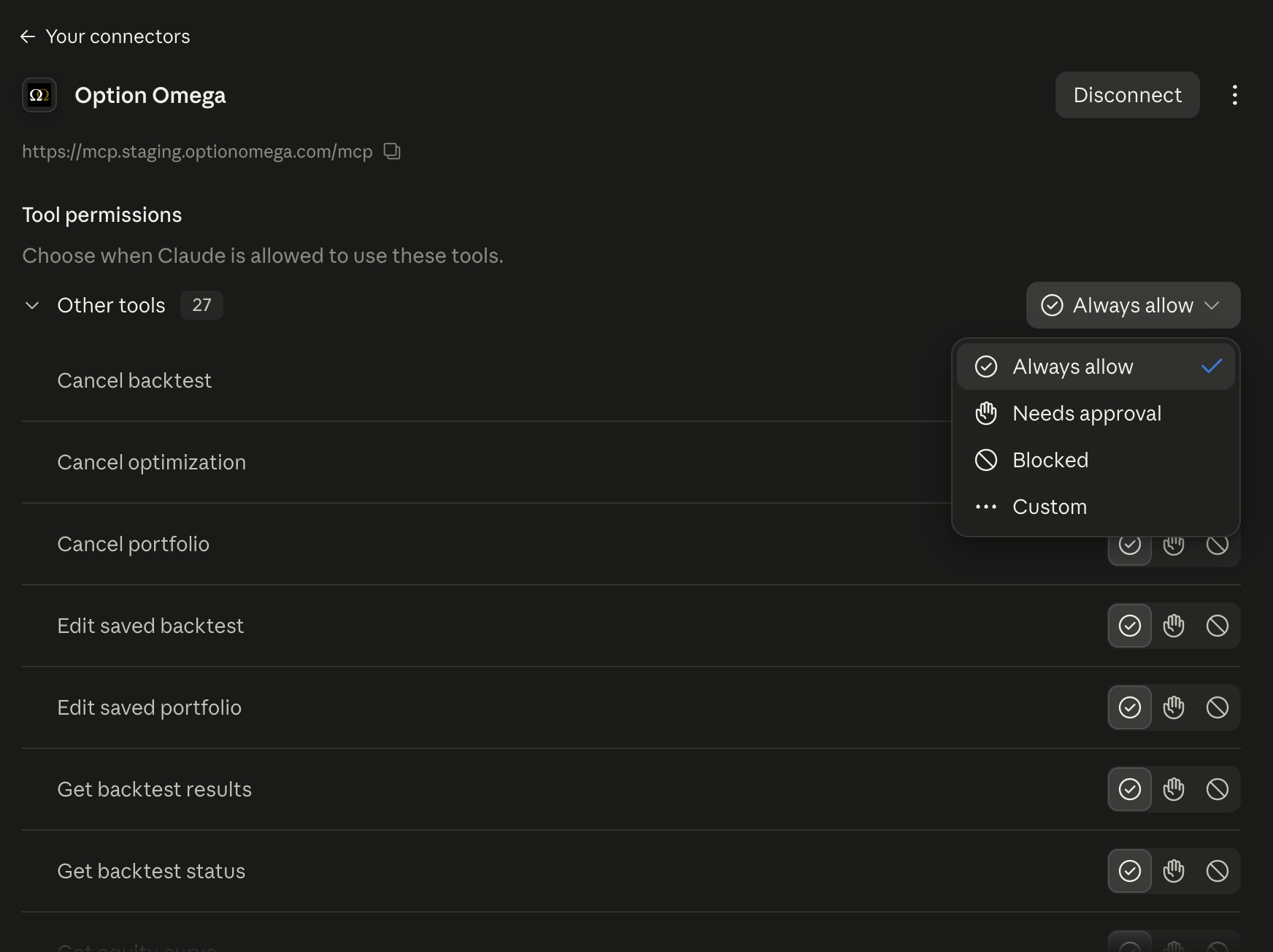
6. Once the connection is established, you can customize the access level granted to various OO functions. The simplest implementation is to Always Allow for all functions, but you can customize this based on preferences. For example, you may want to allow your AI tool to create new backtests, but block it (or require approval) when it comes to editing or archiving existing tests.

<figure><img src="https://3473746390-files.gitbook.io/~/files/v0/b/gitbook-x-prod.appspot.com/o/spaces%2FRCx0eCiBCDnwmdd7LImD%2Fuploads%2Fl8nJfMtjVEIcAlBTYnxp%2Fimage.png?alt=media&amp;token=f46b694b-806f-42b0-b3b7-ba99dc7671c0" alt=""><figcaption></figcaption></figure>

You should now be all set and you can access OO functions in various chat or work functions in Claude.

Using another assistant? Follow its own guide for adding a custom MCP server: [ChatGPT](https://help.openai.com/en/articles/12584461-developer-mode-and-full-mcp-connectors-in-chatgpt), [Gemini CLI](https://geminicli.com/docs/tools/mcp-server/), or [Cursor](https://cursor.com/docs/mcp).

## Using OO via MCP

With your MCP server successfully connected, you can now use OO directly through your AI Assistant. Feel free to ask any questions about trade ideas, backtests, optimization, or portfolio testing. You can use natural language to describe the strategy, and the AI Assistant will work with OO to construct the strategy and run relevant tests, sweep parameters, and help you refine your strategy.

### Try your first prompt <a href="#try-your-first-prompt" id="try-your-first-prompt"></a>

Start with something that only reads your account:

> List my saved backtests and show the three with the best MAR.

Then ask the assistant to run something new. For example, you coud ask it to create a new backtest for a 0DTE SPX iron condor:

<figure><img src="https://3473746390-files.gitbook.io/~/files/v0/b/gitbook-x-prod.appspot.com/o/spaces%2FRCx0eCiBCDnwmdd7LImD%2Fuploads%2Fj1Eh8cvEsZP46tiAmRr0%2Fimage.png?alt=media&amp;token=0022e1d2-a5c4-4285-a9d6-3ab0676a0ebc" alt=""><figcaption></figcaption></figure>

### Backtesting process <a href="#how-a-run-works" id="how-a-run-works"></a>

1. The assistant attempts to create the strategy and fill in all relevant settings based on your request.&#x20;
2. It will start a run and check back when the run completes (it may take several minutes, depending on the complexity and duration).&#x20;
3. When the test completes, it will summarize the results and report them to you.
4. Nothing is saved automatically. Ask the assistant to save a result you want to keep; unsaved runs will expire after some time.&#x20;
5. You can refine your backtest by asking OO to test different iterations, either as new backtests or through parameter sweeps utilizing the Optimizer. The AI assistant will invoke the appropriate function in OO based on your request.&#x20;
6. The AI assistant can access backtesting, optimization, and portfolio test results. It can also perform it's own analysis and interpretation of results to help you continue refining your strategies further.&#x20;

### AI assumptions can affect results <a href="#write-prompts-that-get-reliable-results" id="write-prompts-that-get-reliable-results"></a>

If your prompt leaves out a detail, the assistant fills it in with its own guess. For a test you plan to rely on, include:

* The underlying and structure (for example, SPX 0DTE put credit spread).
* Entry and exit rules: time, delta or strike distance, profit target, stop loss.
* The date range.
* Starting funds and sizing (fixed contracts or percent allocation).
* Fees and slippage.

You can ask the assistant to tell you if it is making assumptions on your behalf, or if you need to provide additional information.&#x20;

> If you try several variants and keep the best one over a short window, the result is probably flattering. MAR over a short window is also annualized, so it can look very large. Ask the assistant to re-test the winner on a period you did not use to pick it.

### Example prompts <a href="#example-prompts" id="example-prompts"></a>

<figure><img src="https://3473746390-files.gitbook.io/~/files/v0/b/gitbook-x-prod.appspot.com/o/spaces%2FRCx0eCiBCDnwmdd7LImD%2Fuploads%2FaMUYHA887QS9uWCVB1EX%2Fimage.png?alt=media&amp;token=45dbb5a1-8d46-4515-a931-83ef70489ff2" alt=""><figcaption></figcaption></figure>

Looking for ideas? Try some of these example prompts:

**Backtest a strategy**

* "Backtest a 0DTE SPX iron condor from 2023-01-01 through the last completed trading day. Enter at 10:01 AM ET to avoid news spikes, place the short strikes at 15 delta, 50-point wings, 50% profit target, 200% stop loss. Use $100,000 starting funds and 1 contract per trade, and list any settings you assumed."
* "Find a 0DTE SPX vertical that was profitable over the last 90 days, with a MAR of at least 2 and no more than $10k of capital per day. Then test the best one on an earlier period and tell me how it held up."

**Compare and optimize**

* "Compare 25%, 50% and 75% profit targets on my SPX iron condor. Which gives the best risk-adjusted return?"
* "Test stop losses from 100% to 300% in 25% steps. Compare total P/L, win rate, max drawdown and Sharpe ratio."
* "Find the best entry time for my SPX 0DTE iron condor between 9:45 AM and 11:00 AM."

**Analyze results**

* "What are the biggest drivers of losses in my SPX iron condor backtest?"
* "Break down performance by day of week. Are there days I should exclude?"
* "Is my strategy's performance consistent across years, or concentrated in a few periods?"

**Portfolios**

* "How correlated are the daily returns of my iron condor and put credit spread strategies?"
* "Compare different allocations between my saved strategies. What are the return and drawdown tradeoffs?"

**Check whether a result is robust**

* "Is this backtest robust or possibly overfit? Suggest more tests to validate it."
* "Compare performance before and after 2020. What changed in returns, win rate and drawdowns?"

## Troubleshooting <a href="#troubleshooting" id="troubleshooting"></a>

<table data-header-hidden><thead><tr><th width="281.21435546875">Problem</th><th>What to try</th></tr></thead><tbody><tr><td>The assistant says it cannot find Option Omega tools</td><td>Make sure the connector is switched on for this chat, or start a new chat.</td></tr><tr><td>The connection asks you to sign in again, or stops working</td><td>Log in to Option Omega in your browser, then reconnect from your assistant's connector settings.</td></tr><tr><td>The browser does not open Option Omega when you connect</td><td>Check that you are logged in to Option Omega in the same browser, then repeat the connect steps.</td></tr><tr><td>A daily limit message</td><td>Limits reset at midnight US Eastern time. Ask the assistant to check your remaining runs.</td></tr><tr><td>A rate limit message</td><td>Wait a minute. You may have hit a limit for maximum concurrent tests. </td></tr><tr><td>Results look wrong</td><td>Ask the assistant to read back the strategy settings it used, then open the saved backtest in Option Omega to verify.</td></tr></tbody></table>

## Limits <a href="#limits" id="limits"></a>

* Every backtest, optimization run, or portfolio test initiated by the AI assistant counts toward your daily limit, shared with the Option Omega app. Limits depend on your plan and reset at midnight US Eastern time. Ask "How many runs do I have left today?" to check.
* Additional rate limits apply and are subject to change.&#x20;
* For more information limits by tier, see [Subscription Tiers](/support/subscription-tiers.md)