> For the complete documentation index, see [llms.txt](https://docs.optionomega.com/llms.txt). Markdown versions of documentation pages are available by appending `.md` to page URLs; this page is available as [Markdown](https://docs.optionomega.com/automation/getting-started.md).
# Getting Started
*Note: Broker setup is covered at the end of this page — it must be enabled before a strategy will automate.*
This page provides a step-by-step guide for setting up a sample automation strategy. In addition, [Automation Bootcamp on Option Omega Academy](https://academy.optionomega.com/course/automation-bootcamp) is designed as a visual companion to the written docs. It helps to have a solid grasp of both backtesting and strategies, along with familiarity with the material in [Backtesting Bootcamp](https://academy.optionomega.com/course/backtesting-bootcamp) and [Automation Bootcamp](https://academy.optionomega.com/course/automation-bootcamp).
Strategies can be created in one of two ways: from scratch or from your saved backtests.
Let’s look at creating one from a backtest.
Start by clicking **Test → Tests** and opening a saved backtest. You’ll see a large purple button labeled **Create Automated Strategy**. Select it, and a new window will open that auto-populates certain values based on the backtest.
The first thing to note is the **Is Active** button. This is off by default. You can create and edit strategies, but to automate them, this button must be selected.
You can name, describe, and tag your strategy. You also need to link a brokerage account for it to be automated.
Instead of stepping through every single variable, let’s look at a few key items that are unique to the strategy creation screen.
Under funds and allocations, you must select one of three allocation types: percentage, fixed value, or fixed quantity. This is set up differently in a backtest, where you can have multiple limiters.
Other key items to review are [Profit Target and Stop Loss Order Types](/automation/profit-target-and-stop-loss-order-types.md) and [Trade Management](/automation/trade-management.md).
Also, take a look at the **Execution Parameters** at the bottom. You can set the price increment and speed interval to control how aggressively the automation tool enters and exits trades. You can also add **Exit Execution Overrides** if you want a specific exit condition to behave more or less aggressively.
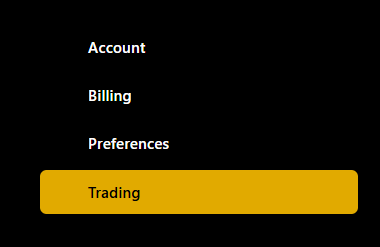
Lastly, to set up a broker, go to **Settings** in the upper right, then **Trading**. You can add a broker there and configure email alerts.
If you try to launch a strategy before setting up the broker, the platform will not function properly.
Note: OO uses a standard email alert service. There are several reasons a user may not receive an email, including service-level, user-level, or company-level settings. Users should verify that they are receiving all alert emails. A good way to do this is to cross-reference them with activity log entries. Many users also set up a filter for alert emails to avoid spam.
Finally, and this is important, users of the platform should follow the [#known-issues](https://discord.com/channels/882705067210317915/1377977525933834260) channel on Discord. That’s where technical support discussion and time-sensitive updates are posted. It’s the fastest way to stay up to date.